





Web version: nothing to install
Open the EVBOOST website in a browser on your phone, tablet or computer. Find a supported station, choose a connector, top up your balance, start charging and manage the active session.
Find a partner station, check the price and status, top up your balance and start charging from a web browser or the iOS and Android apps —without a separate app for every operator.For compatible Android car systems there is a separate EVBOOST APK file.
Roaming works on the website and in the mobile apps. Use whichever device suits you with your EVBOOST account. The layout and button positions may differ.
Open the EVBOOST website in a browser on your phone, tablet or computer. Find a supported station, choose a connector, top up your balance, start charging and manage the active session.
Install EVBOOST from the App Store on iPhone or from Google Play on an Android phone. The app lets you find roaming stations, top up, start a session, view it and stop it.
EVBOOST on your car screen: a separate APK with an OSM map for compatible Android systems that allow APK installation — including BYD, Zeekr, Avatr, Li Auto / Lixiang, Geely, Changan, Proton and others.
BYD, Zeekr, Avatr, Li Auto / Lixiang, Geely, Changan, Proton and other cars with Android head units that allow APK installation. Compatibility depends on the model and the system firmware.
Download the APK with the button above from the official EVBOOST website. Check that your head unit is compatible and install the file the way it allows. After installing, make sure you have internet, sign in to your account and check that the map and the card of the station you need work. Only configure the app and start charging while the car is parked.
Sign in to your EVBOOST account on a phone or computer. The website lets you top up, start a session, view active sessions and send a stop command at supported stations.
EVBOOST works as a single point of access between the driver and partner charging networks: it shows available connectors and the price, passes on the start command and displays how the session is going.
No need to register separately with every partner network or hunt for the right interface before charging.
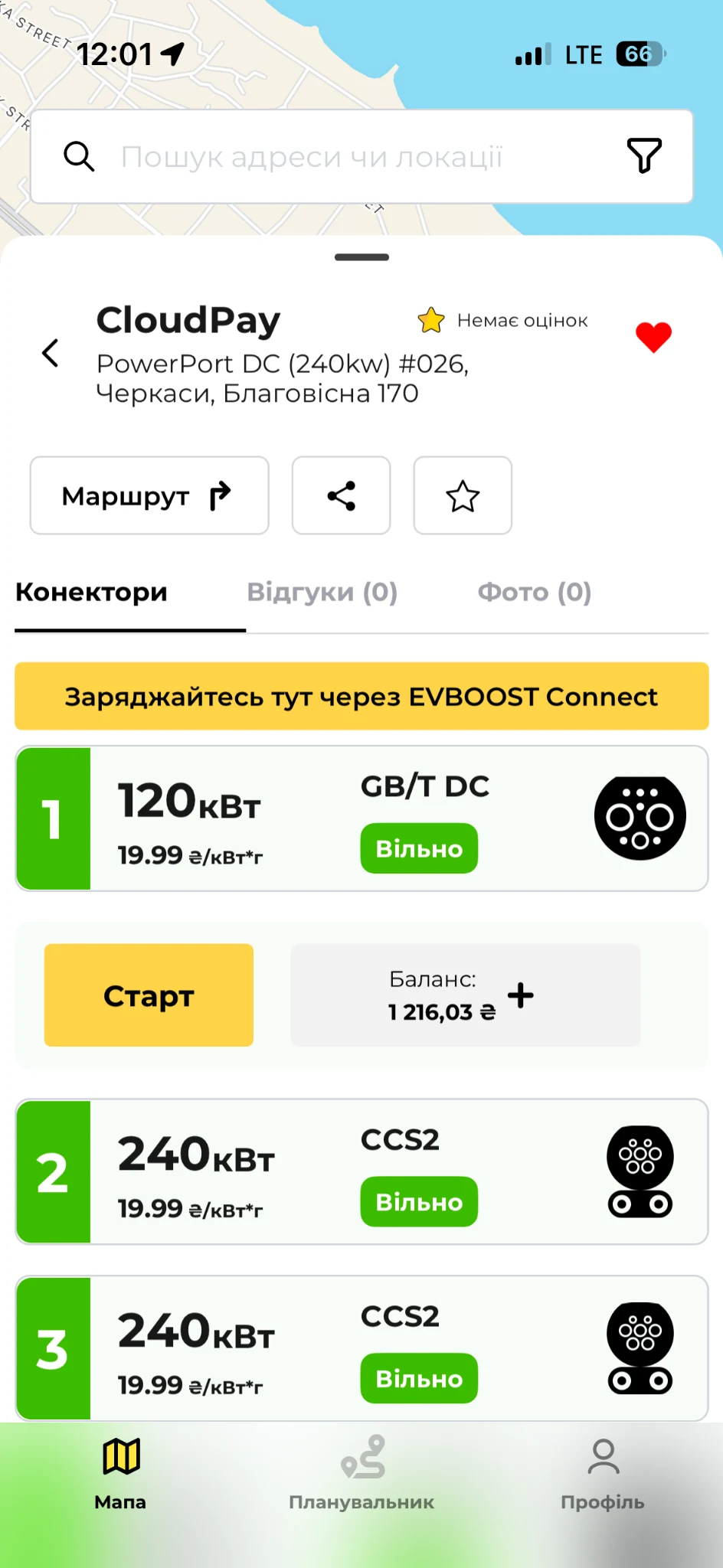
Price, power, connector type and availability are shown in the station card before the session starts.
Start charging, watch the key numbers and end the session in EVBOOST.
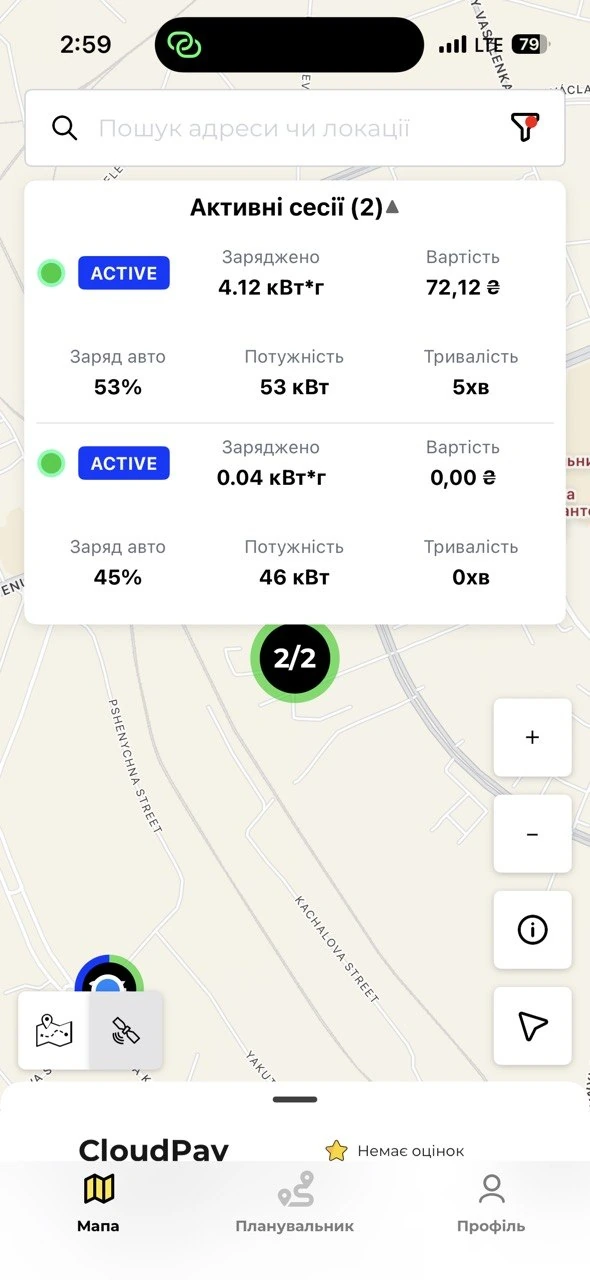
Start and control several active sessions in parallel from one EVBOOST account.
EVBOOST lets you manage many active sessions at once. On the map you see every active session separately: the energy delivered, the duration and the running cost. Power and the car’s charge level appear when the operator provides that data. Finished sessions are not active ones. The illustration shows the app; the widget looks different in the web version.
This guide will help you start charging right on the website. First, sign in to your EVBOOST account. You need an internet connection, a compatible connector and enough balance.
Open the map and turn on the “EVBOOST Connect” quick filter. Or use the “Find a roaming station” button on this page — the filter will already be on.
Open the location card, check the status, power and price, and pick the free connector you need.
Park at the station and plug the selected connector into the car following the equipment instructions. The connector number must match the one selected on the website.
In the expanded connector form check the price and the balance. If needed, tap “Top up”, complete the payment and wait for the funds to arrive. Then return to the same connector and press the green “Start charging” button.
The message “Starting the session” means we are waiting for the result of the command, not that charging has been confirmed. Check the station and car indicators and wait for the active session to appear.
Expand the charging widget on the map. If there are several sessions, find the station you need and tap “Details” to open that session’s own page.
Tap “Stop charging” in the session you need. Wait for the station to confirm the stop and unlock the connector, then unplug it following the equipment instructions.
Your EVBOOST balance pays for roaming sessions. On the website and in the app you can see the current amount and top it up with a bank card. Use the same account to work with your balance and your sessions.
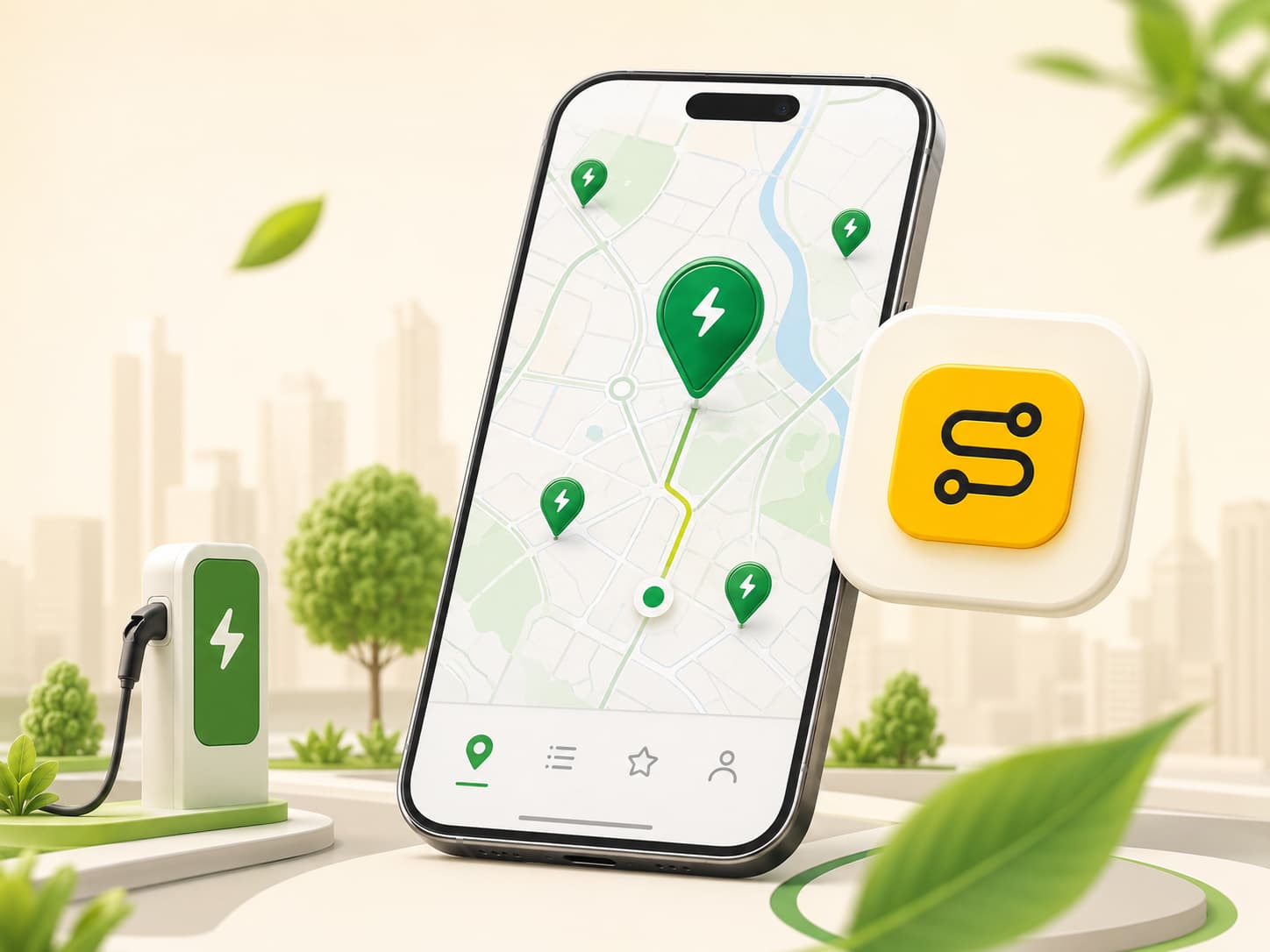
An example of the app screen
Support is enabled for specific partner locations. So look not only at the operator’s name, but also at the roaming mark and the start button in the station card.
Look for stations marked with EVBOOST roaming on the map and in the location card.
Supported locations show a button to start charging through EVBOOST.
Every screenshot in this section shows the phone app, not the web version or the APK on a car screen. The apps are available for iOS and Android; the look on a particular device may differ. To start through the website, usethe web instructions above.
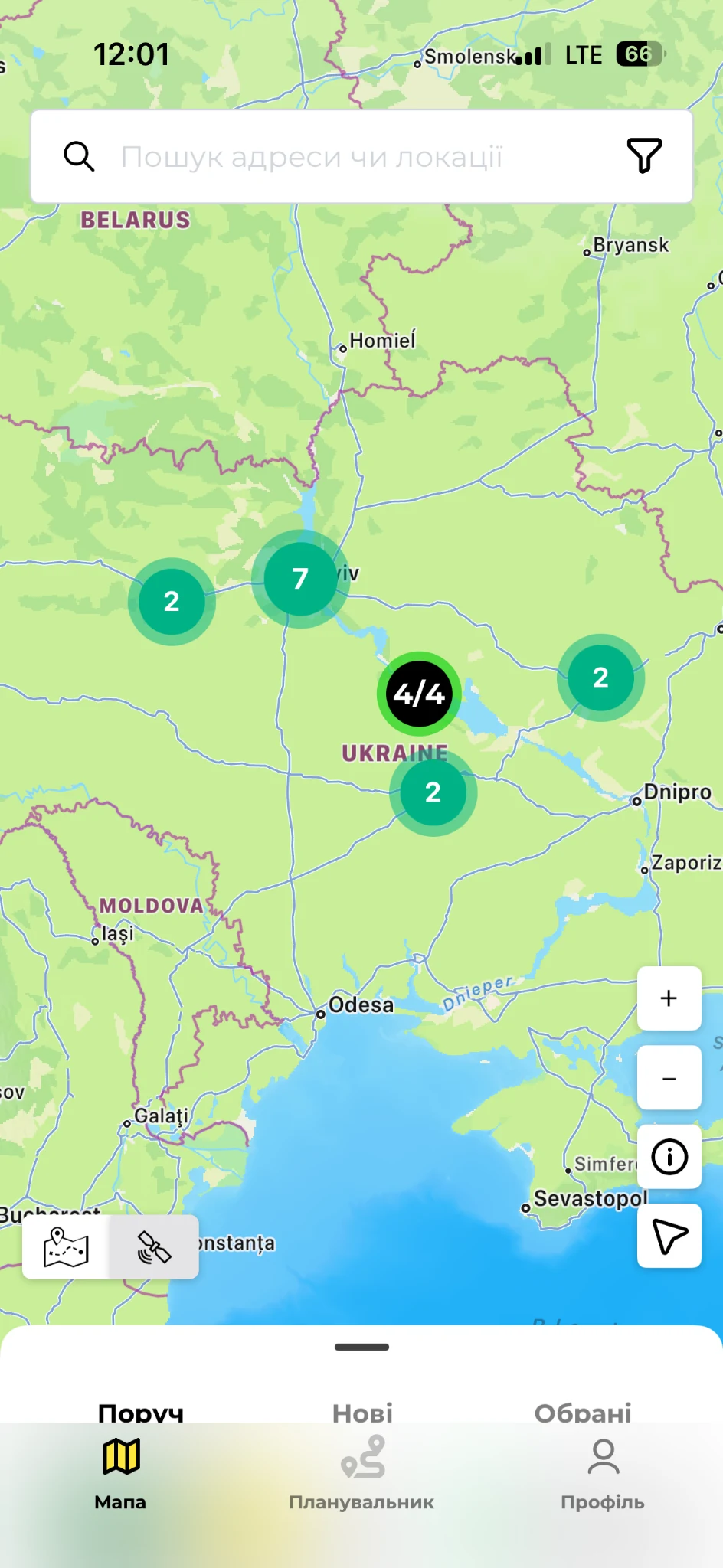
The EVBOOST map gathers charging locations and the tools to search them.
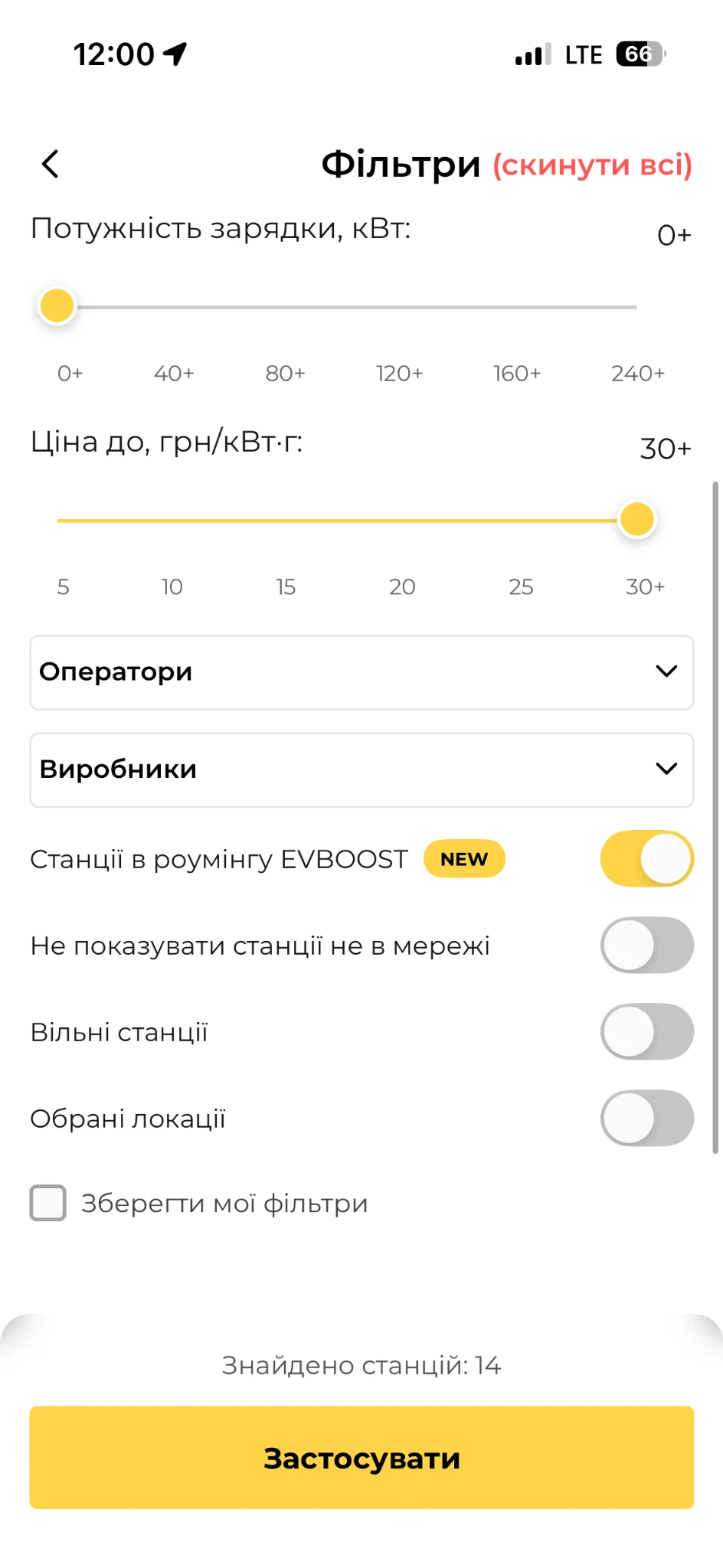
Turn on the “Stations in EVBOOST roaming” switch to keep only the supported points.
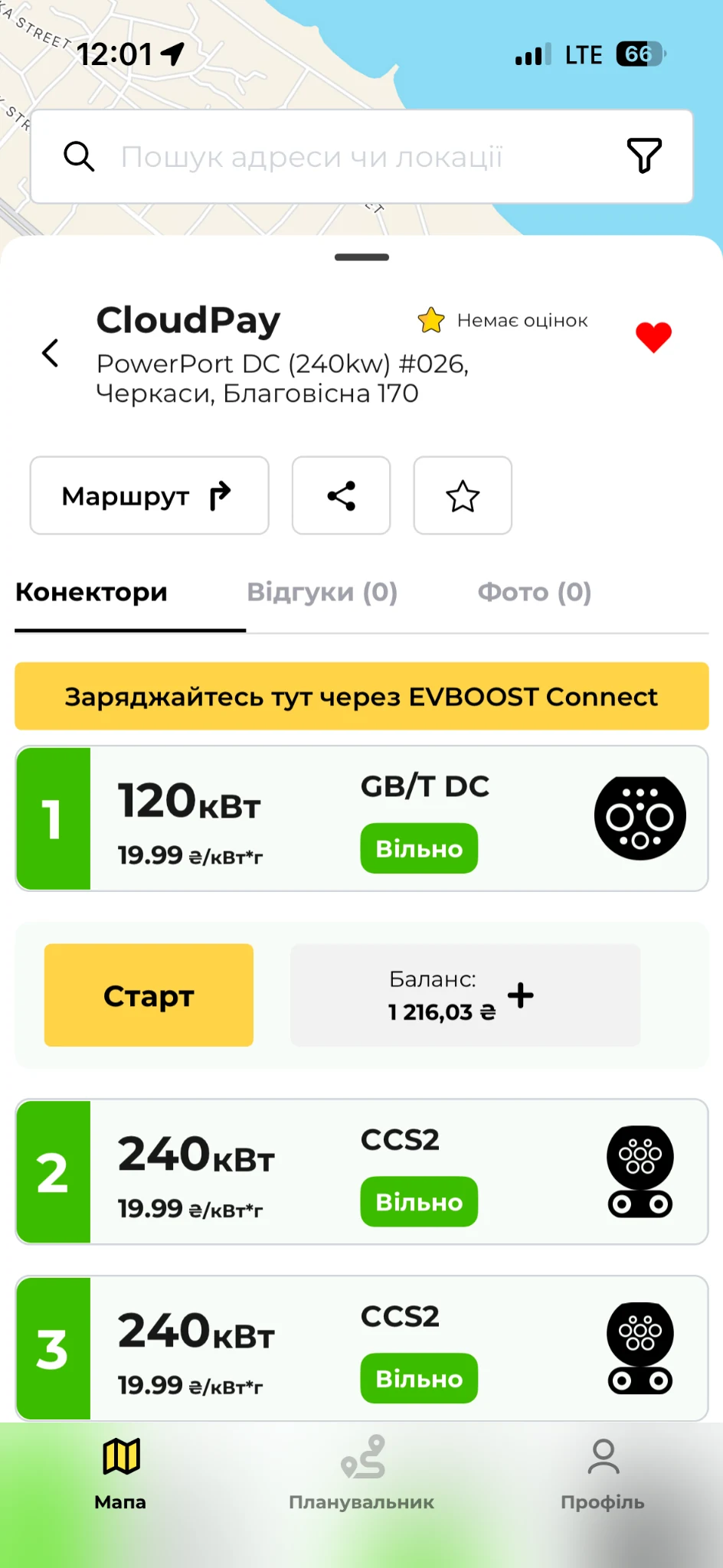
The card shows power, standard, price, status, balance and the “Start” button.
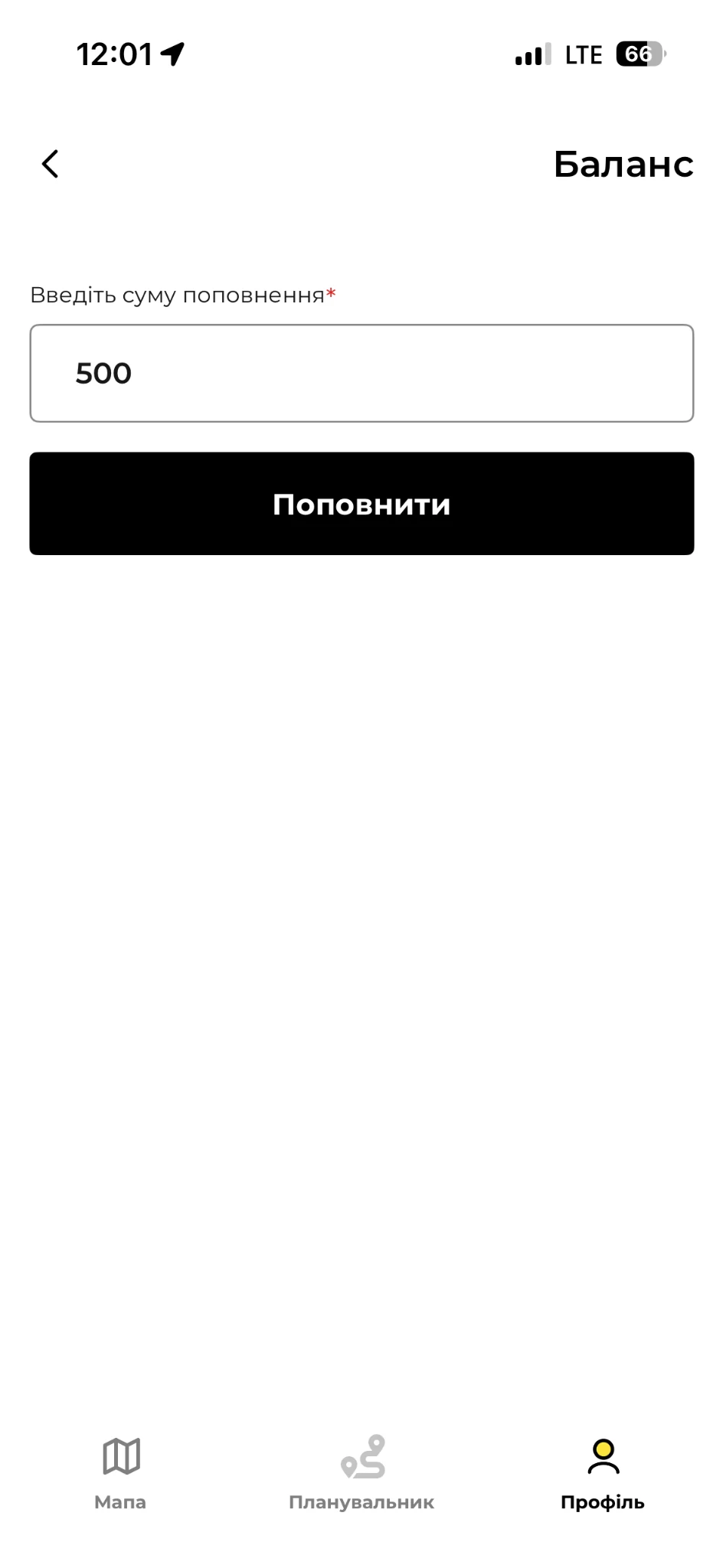
Enter the amount you need and continue to secure card payment.
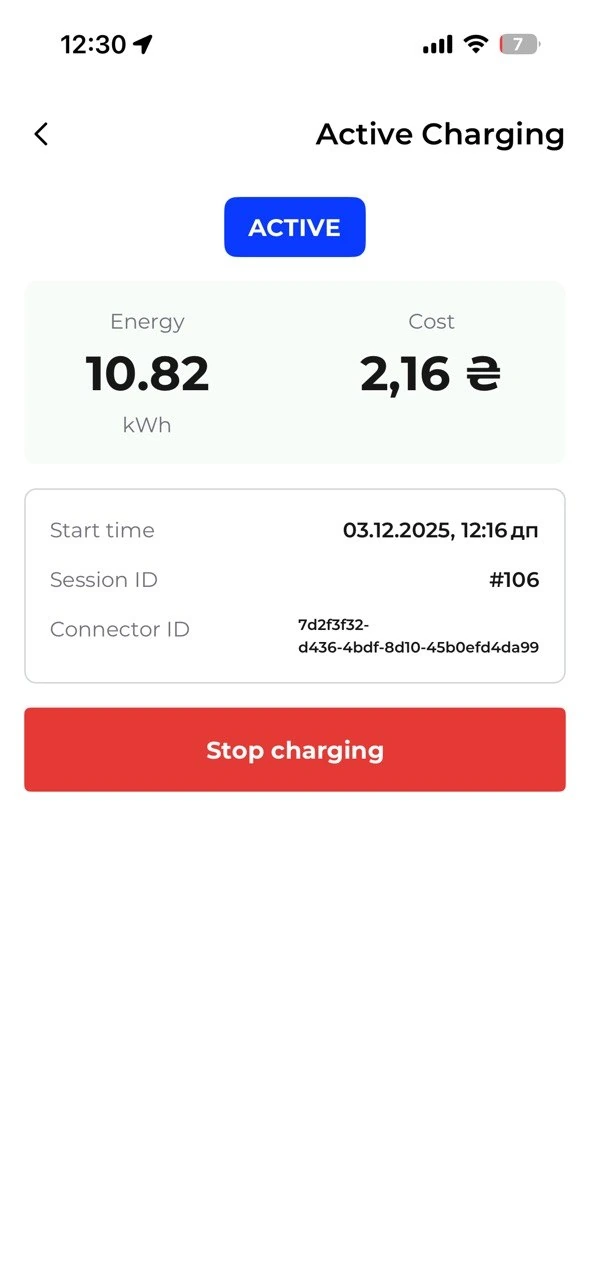
While charging you can see the energy used, the current cost and the start time — and stop the session.
If there are several sessions, open the one you need separately. The car’s charge level and power are shown when the operator provides that data.
To start from the website you don’t need to install anything. If you prefer the app, download EVBOOST and sign in with the same account. For an Android head unit in the car, go toa separate APK for cars.


No. EVBOOST shows thousands of stations from different operators, but starting through roaming works only at supported partner locations. Use the “EVBOOST roaming” filter.
The location and connector card must carry the roaming mark and a button to start charging through EVBOOST Connect. If there is no button, starting through EVBOOST is not available at that station yet.
On the website, tap the balance in the top bar or “Top up” in the form of the selected connector. Choose an amount, pay by card and wait for the balance to update. In the app, top-up is available through your profile and balance.
Make sure the cable is plugged in, the right connector number is selected, the balance is sufficient and you have internet. Read the message in the start form. If the result of the command is unknown, check the station and the list of active sessions first rather than sending start again. If the wait drags on, contact EVBOOST support or the operator using the contacts on the station. Give them the location, the connector number, the time of the attempt and the error text; never share your password or full card details.
Yes. Tap “Stop charging” in the active session you need and wait for the station to confirm it has finished. Pressing the button only sends a command. Unplug the cable after the session stops and the connector unlocks, following the station’s instructions.
Yes. EVBOOST lets you see and control several active sessions in parallel from one account. Expand the widget on the map and pick the session you need. The “Details” button opens its own page; the stop command applies to that session only. Power and the car’s charge level are available if the operator provides them.
Yes. Starting from the website is already available: sign in to EVBOOST, open a supported station on the map, choose a connector, check your balance and plug in the car. Tap “Start charging” and wait for the start to be confirmed.
For compatible Android head units there is a separate EVBOOST APK with an OSM map. The car must allow APK installation, and its Android version and firmware must be compatible with the app. Go tothe APK for cars section to download the file and read the limitations. The screenshots on this page show the phone app, not the car interface.
No. It means we are waiting for the result of the start command. The active session appears once the operator reports the corresponding status. Do not send repeat commands while the previous result is unknown.
EVBOOST receives the status, energy and cost from the station operator. The data may arrive with a delay, and the car’s charge level or power is not available at every station. A zero or unchanging value on its own does not confirm that charging has stopped. Check the indicators on the station and in the car as well.
Closing the page is not a stop command. Once you are back online, open EVBOOST under the same account and check the active sessions. Do not start a new session in order to regain control of one already running.
Do not treat the session as finished just because you pressed the button. Check its status and the station indicators. If no confirmation arrives, use the standard stop procedure described on the equipment, or contact the station operator and EVBOOST support. Never force a locked connector out.
Check the price of the chosen connector before you start. Funds are taken from your balance based on the operator’s session data; the running total may update with a delay. The estimate of how many kWh your balance covers is indicative and does not replace the price or the final session data.
Current availability is always shown on the map and in the card of the specific connector.